Use the complete guide to Premiere Pro markers to check marker ownership and timecode before moving notes between contexts.
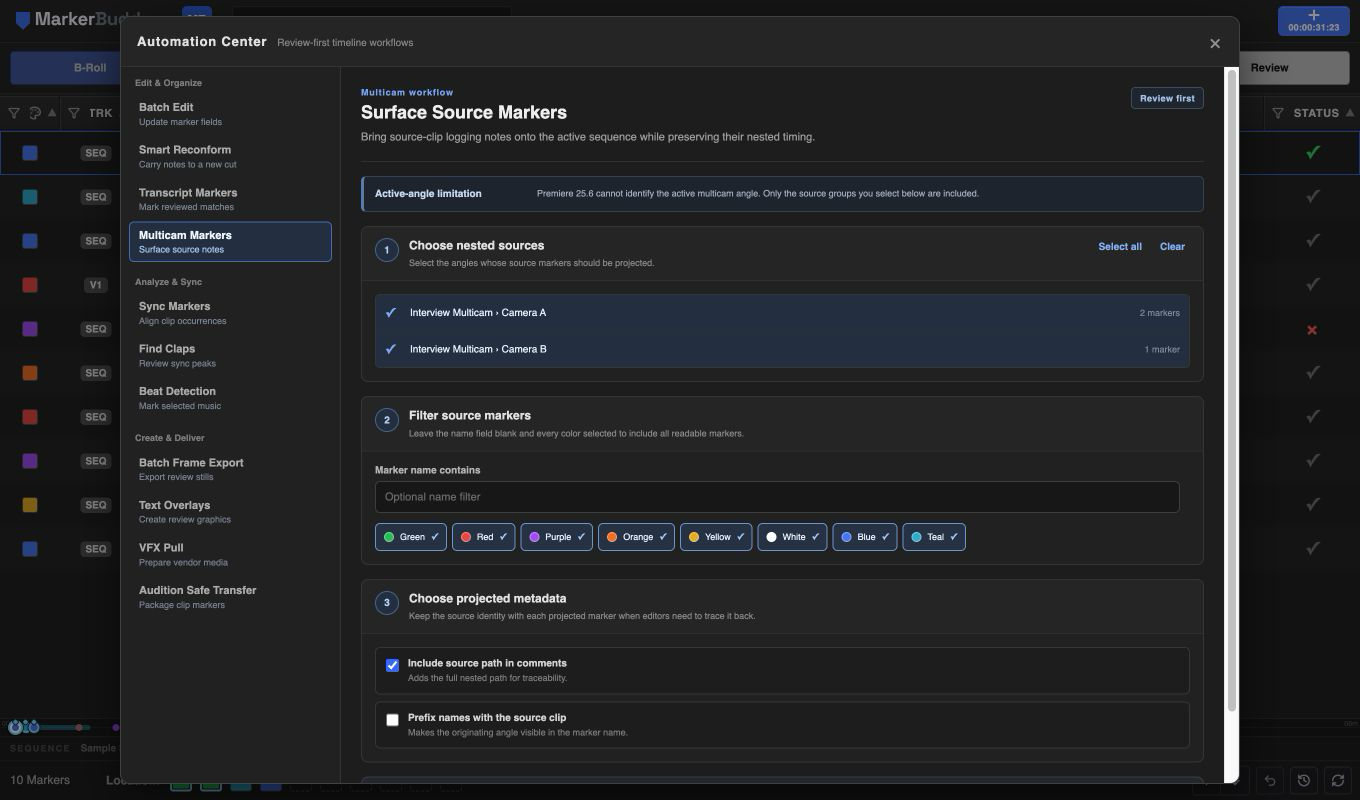
Inspect the nested sources without changing the sequence
MarkerBuddy recursively reads visible multicam and ordinary nested sources, their source markers, and the timing information needed to map each note into the active parent sequence.
Choose the exact source groups you want. Premiere does not tell MarkerBuddy which multicam angle is active, so MarkerBuddy never guesses or labels one source as active.
Filter source markers and preserve traceability
Leave the name filter blank and every color enabled to include all readable source markers, or narrow the plan by marker name and Premiere palette color.
Optionally include the full nested source path in comments or prefix marker names with the source clip so projected notes remain traceable after they reach the parent sequence.
Review mapped timing and duplicate decisions
The projection plan shows every output marker, parent-sequence position, color, and nested source path before apply. Timing accounts for trims, playback mapping, and the nested occurrence offset.
Running the same plan again skips markers MarkerBuddy already added instead of stacking another copy.
Workflow
A practical four-step process
-
01
Open the active multicam edit
Make the parent sequence active, then open Automation Center and choose Multicam Markers.
-
02
Select nested sources
Choose the camera or nested source groups whose logging markers should be surfaced.
-
03
Filter and choose metadata
Limit names or colors if needed and decide how the source identity should appear.
-
04
Review and surface markers
Confirm the parent-sequence positions and apply the reviewed, duplicate-safe marker plan.
Before delivery
Choose the intended multicam source
Premiere does not tell MarkerBuddy which multicam angle is active, so choose the source explicitly. MarkerBuddy surfaces reviewed source markers on the parent sequence without labeling any source as the active angle.
