For marker placement and timing fundamentals before importing, see the guide to sequence and clip markers in Premiere Pro.
Use the transcript already inside Premiere
Choose the active sequence or exact Source Monitor clip whose existing speech-to-text transcript you want to search.
If the chosen sequence or clip has not been transcribed, open Window → Text in Premiere, select the Transcript tab, and create the transcript there first. Then return to MarkerBuddy.
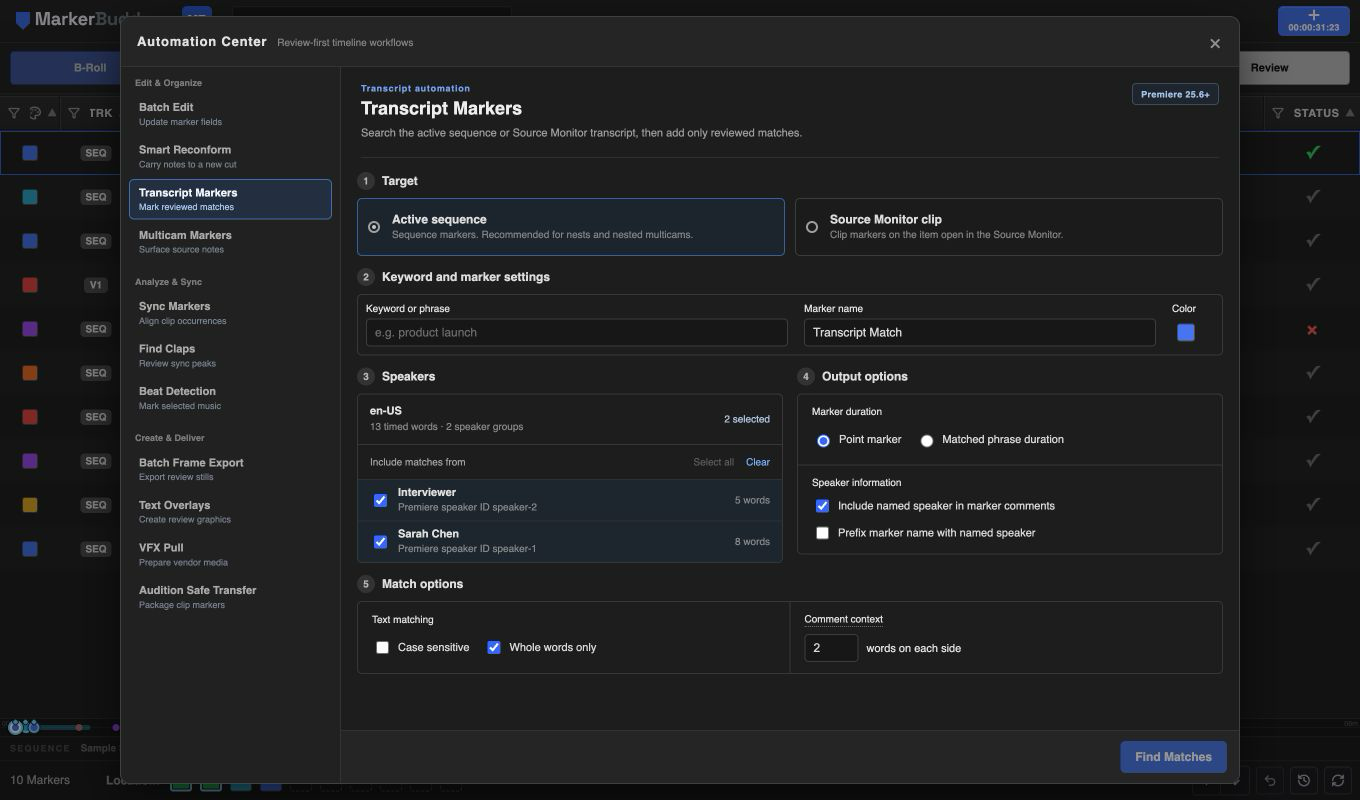
Search the active sequence or exact source clip
Active Sequence searches the transcript for the sequence currently active in the Timeline. Approved matches become sequence markers at transcript-relative times, including sequences with a non-zero display start.
Source Monitor clip searches the transcript for the exact project item currently open in the Source Monitor. Approved matches become clip markers on that project item.
Active-sequence mode supports ordinary nests, multicams, and nested multicams. Premiere does not identify the active multicam angle for this workflow, so review the sequence-level matches before creating markers.
Filter speakers and control exact marker output
MarkerBuddy shows the transcript language, timed-word total, each speaker group, and per-speaker word counts. Filtering uses Premiere speaker IDs, so duplicate displayed names remain separate. Words without IDs appear as Unlabeled.
Each search accepts one keyword or phrase, one base marker name, and one of Premiere's eight marker colors. Named speakers can be included in comments and can optionally prefix marker names. Case-sensitive matching and whole-word matching remain available.
Comment context is independent from timing. The default adds an ellipsis, two words before the match, the matched keyword or phrase, two words after it, and a closing ellipsis. Choose any value from 0 to 50 words on each side; 0 keeps only the matched text.
A point marker starts on the first matched word and has no duration. Matched-phrase duration starts on the first word and ends with the last matched word. Surrounding comment words never move or extend either choice.
One phrase never crosses two different known speakers. Same-speaker phrases can still cross adjacent transcript segments. If Premiere provides no speaker IDs, cross-segment matching remains available because a speaker change cannot be identified reliably.
Workflow
A practical four-step process
-
01
Prepare the transcript
Open the intended sequence or source item and confirm that Premiere already shows its transcript in the Text panel.
-
02
Choose the target
Select Active Sequence for sequence markers or Source Monitor clip for markers on the exact open project item.
-
03
Set speakers and output
Select speaker groups, enter one keyword or phrase, choose the marker name and color, then set duration and comment options.
-
04
Review, approve, and create
Click Find Matches, review every timed result, clear unwanted rows, and create only the approved markers.
Good fit
Use this workflow for
- Finding repeated product, topic, speaker, or action words
- Adding consistent markers across long interviews or podcasts
- Marking transcript phrases in nested or multicam sequences
- Creating clip markers on the exact Source Monitor project item
Before creating markers
Review transcript matches in the current target
Create a Premiere transcript before searching, and review every proposed match before adding markers. If you change the active sequence or Source Monitor item after searching, refresh the results before continuing.
