Use the complete guide to Premiere Pro markers to check marker ownership and timecode before moving notes between contexts.
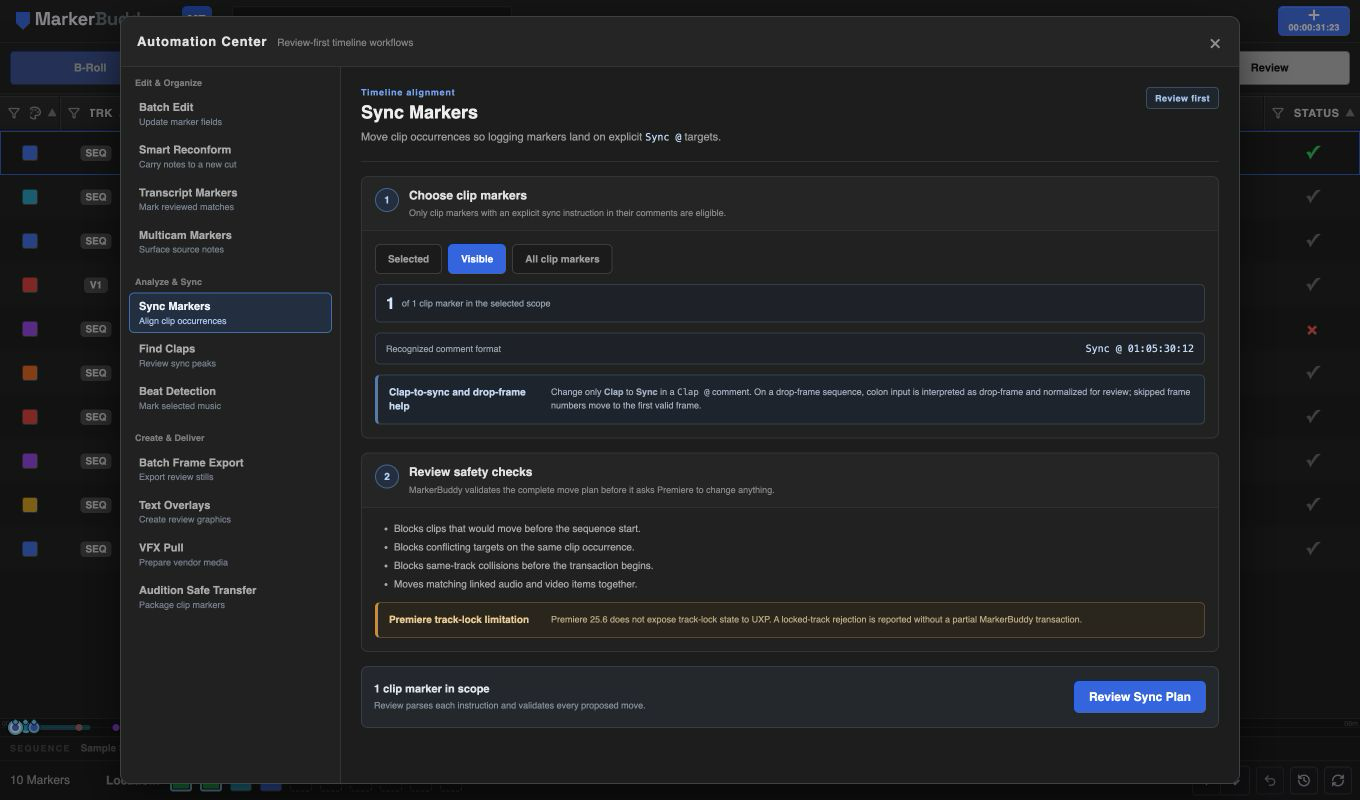
Use an explicit Sync @ instruction
Only clip-marker comments containing Sync @ HH:MM:SS:FF or the semicolon drop-frame equivalent are eligible. An ordinary naked timecode inside a note is ignored so editorial comments cannot move media accidentally.
A Clap Marker comment such as Clap @ 01:00:12:08 becomes a sync instruction by changing only the leading word from Clap to Sync.
On a drop-frame sequence, colon-form input is interpreted on the sequence drop-frame clock. MarkerBuddy normalizes the review target to a semicolon label and translates an impossible skipped label such as 00:01:00:00 to the first valid frame, 00:01:00;02, instead of treating it as non-drop or failing silently.
Markers that resolve to the same clip occurrence must agree on one destination. Conflicting targets on one clip are blocked before any move begins.
Choose the intended clip-marker scope
Use Selected, Visible, or All clip markers. Sequence markers do not become move instructions. The setup count shows how many clip markers match the current scope before review.
When matching audio and video items share the same source occurrence and timing, MarkerBuddy plans them as one linked group.
Review starts, targets, links, and collisions
The plan shows each clip occurrence, its original sequence start, the requested target, the computed new start, and linked-item count.
MarkerBuddy blocks negative sequence starts and overlaps with other media on the same track. Approved linked clips move together, and the result reports anything Premiere could not move.
Workflow
A practical four-step process
-
01
Add explicit sync instructions
Write Sync @ followed by the intended target timecode in the relevant clip-marker comments, or change the leading word in a Clap @ comment from Clap to Sync.
-
02
Choose the clip-marker scope
Select marker rows or use the Visible or All clip-marker scope in Sync Markers.
-
03
Review every planned move
Confirm the clip occurrence, old start, new start, target marker, linked items, and safety findings.
-
04
Apply and verify the sync
Move the approved linked clips and review the result before continuing the edit.
Before delivery
Unlock destination tracks before applying
Unlock the intended destination tracks before applying the plan. MarkerBuddy checks negative starts, conflicting targets, and same-track collisions first. If Premiere blocks a move, no partial move is kept and the result identifies what needs attention.
