Clear markers with Premiere's own commands
Click a marker in the Timeline ruler or the Markers panel to select it, then choose Markers > Clear Selected Marker. With the default keyboard shortcuts this is Option+M on macOS and Ctrl+Alt+M on Windows.
Markers > Clear All Markers removes every marker from whatever is active: the sequence when the Timeline is active, or the clip when a clip is selected or open in the Source Monitor.
To delete several markers, open Window > Markers, select the ones you want to remove, and press Delete. Adobe's find, move, and delete guide describes the current interface.
Check whether you are deleting clip markers or sequence markers
A sequence marker belongs to one timeline. A clip marker belongs to the source clip, so deleting it removes it wherever that source is used.
Before you choose Clear All Markers, check what is selected. With a clip selected in the Timeline, the command clears that clip's markers and leaves the sequence markers alone. Premiere's Undo restores cleared markers.
Delete a filtered set with MarkerBuddy
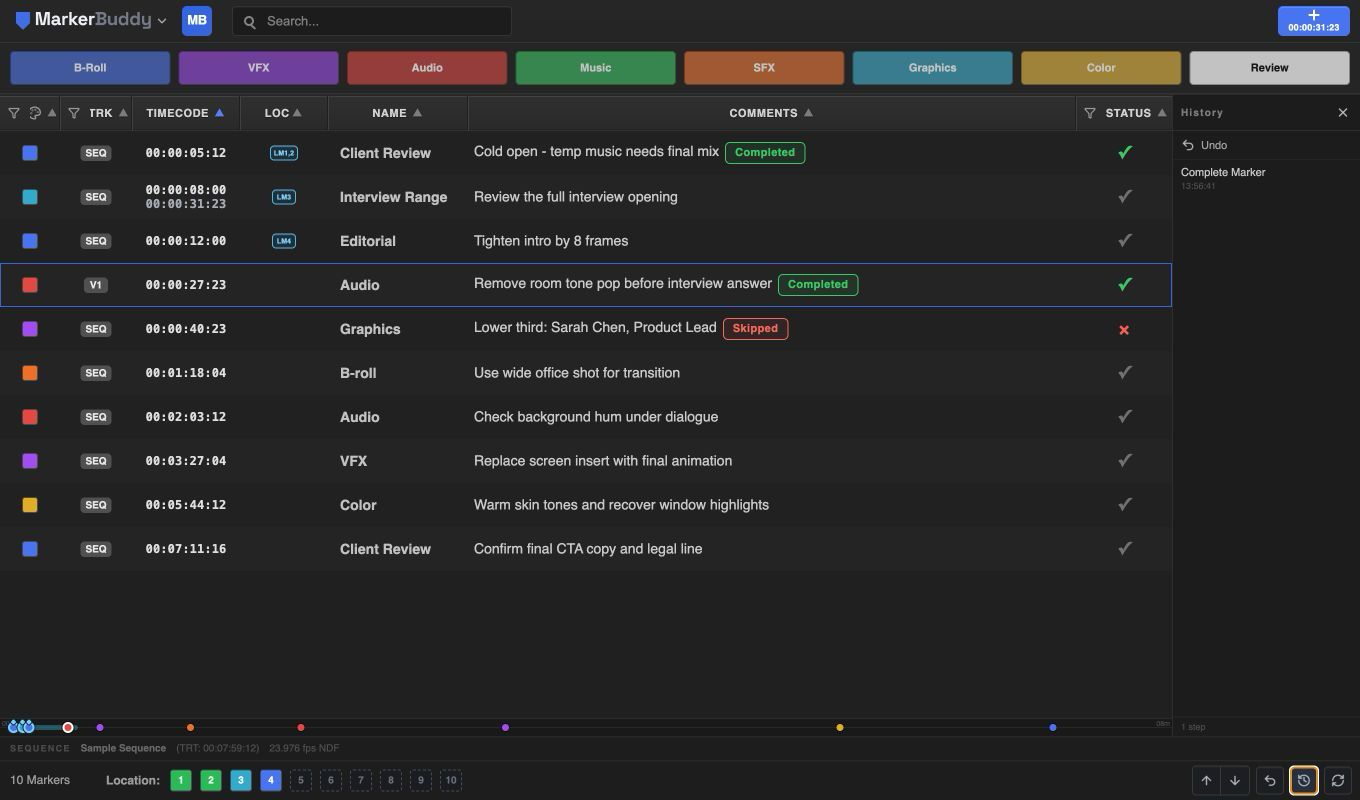
MarkerBuddy lists the sequence markers and clip markers of the active sequence in one table. Filter by color, track, or status, or search names and comments, then press Command+A or Ctrl+A to select every visible marker.
Right-click and choose Delete Marker, click the trash button in the footer, or press Delete. Only selected markers that are visible are deleted, so a filter protects everything it hides. There is no confirmation dialog. Each delete is one entry in MarkerBuddy Undo and in Undo History.
Delete only the markers you mean to
-
Filter the list
Use Color, Track, Status, or search so the table shows only the markers to remove.
-
Select them
Press Command+A or Ctrl+A for every visible marker, or Command-click or Ctrl-click single rows.
-
Delete
Right-click and choose Delete Marker, or press Delete. A message shows how many markers were deleted.
-
Undo if needed
Click Undo in the footer, or press Command+Z or Ctrl+Z in the panel, to bring the markers back.
When this helps
- Clearing completed notes after a review round
- Removing one color of markers and keeping the rest
- Deleting clip markers on one track without touching sequence markers
- Cleaning up after a test import
What MarkerBuddy does not do
MarkerBuddy has no Clear All command and no delete-by-color command. Filter the list, select the visible markers, and delete them. Markers hidden by a filter are never deleted.
